
Network views: campus map and switch faceplate
Devexana builds the campus map and the switch faceplate from maintained files and source records. This page explains what each view shows, which records it uses and its limits.
- Available
- Campus map from the site file your team maintains
- Available
- Links between switches from LLDP and CDP neighbour data
- In production use
- Access points and phones inferred from LLDP data
- Available
- Switch faceplate and port trace
- Off by default
- Live map background in the campus view
On this page
The views combine files that your team maintains with records from source reads. The table below identifies the inputs.
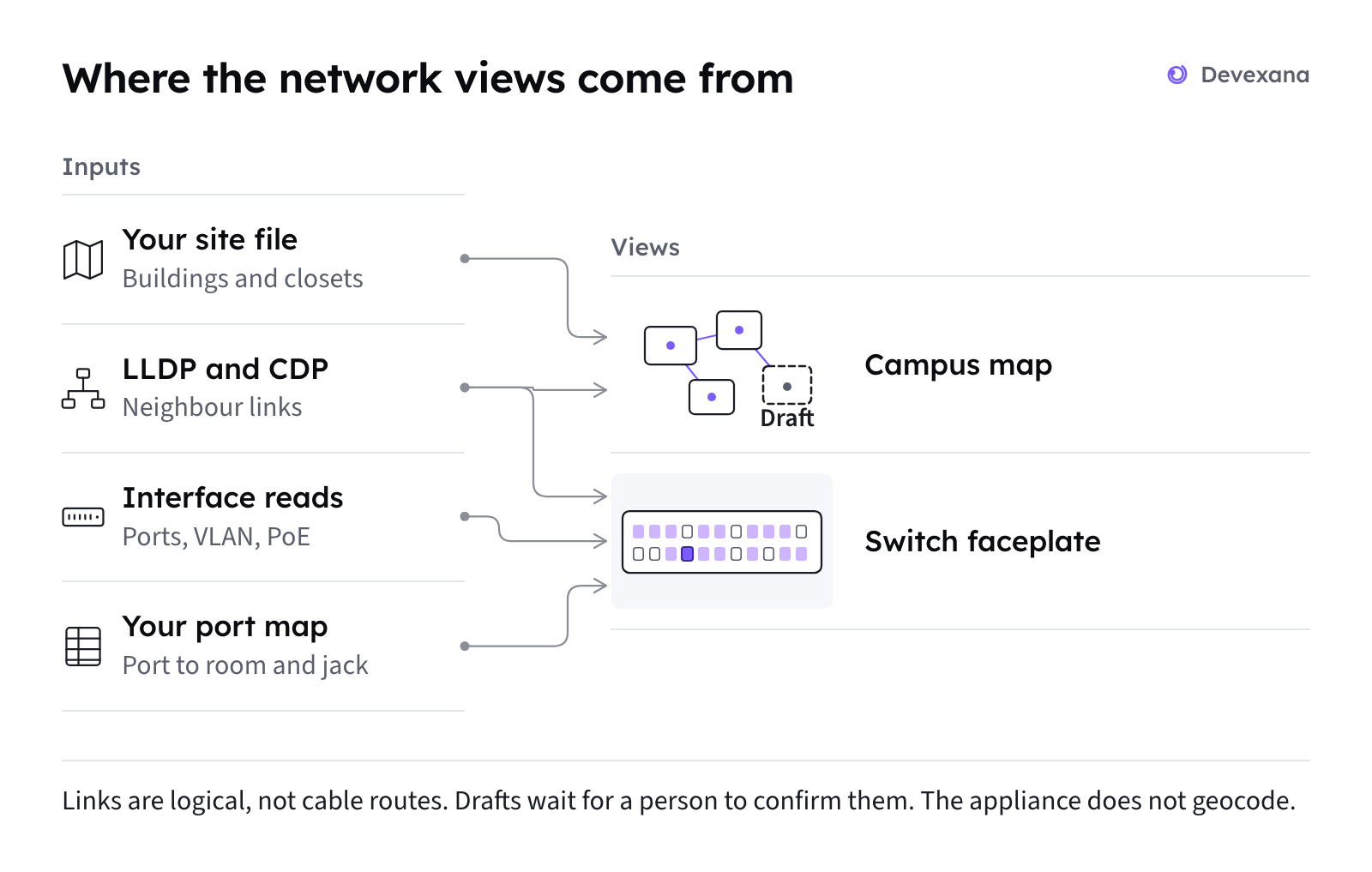
Where each element comes from
Each displayed element comes from a maintained file, a source read or an inference.
| Drawn element | Source | Kind |
|---|---|---|
| Buildings and closets on the campus map | Your site file (sites.json) and campus file (campus.json). Your team enters plan positions, rooms and jacks | Entered by your team |
| Building placement that Devexana derives from a switch name | A draft. It stays a draft until a person confirms it | Inferred, needs confirmation |
| Map image or schematic behind the campus map | You prepare it on another computer before you load it | Supplied by your team |
| Lines between switches on the campus map | LLDP and CDP neighbour tables that the switches report. Devexana sorts each line as inter-building, riser, intra-building or unplaced | Read from switches, logical |
| Access points and phones | Devexana infers them from the LLDP data that switches report. A person approves each inferred device | Inferred, needs approval |
| Ports on the switch faceplate | Interface reads (port state, PoE class, VLANs), your port map, the devices seen on each port (MAC address and host), and stored configuration versions | Read from switches and entered by your team |
| Port trace | Devexana follows neighbour links from port to port | Read from switches |
Campus map
The campus map places buildings and closets from the site file your team maintains. It draws the switch-to-switch links between buildings that the switches report, and labels them as observed links, not cable routes.
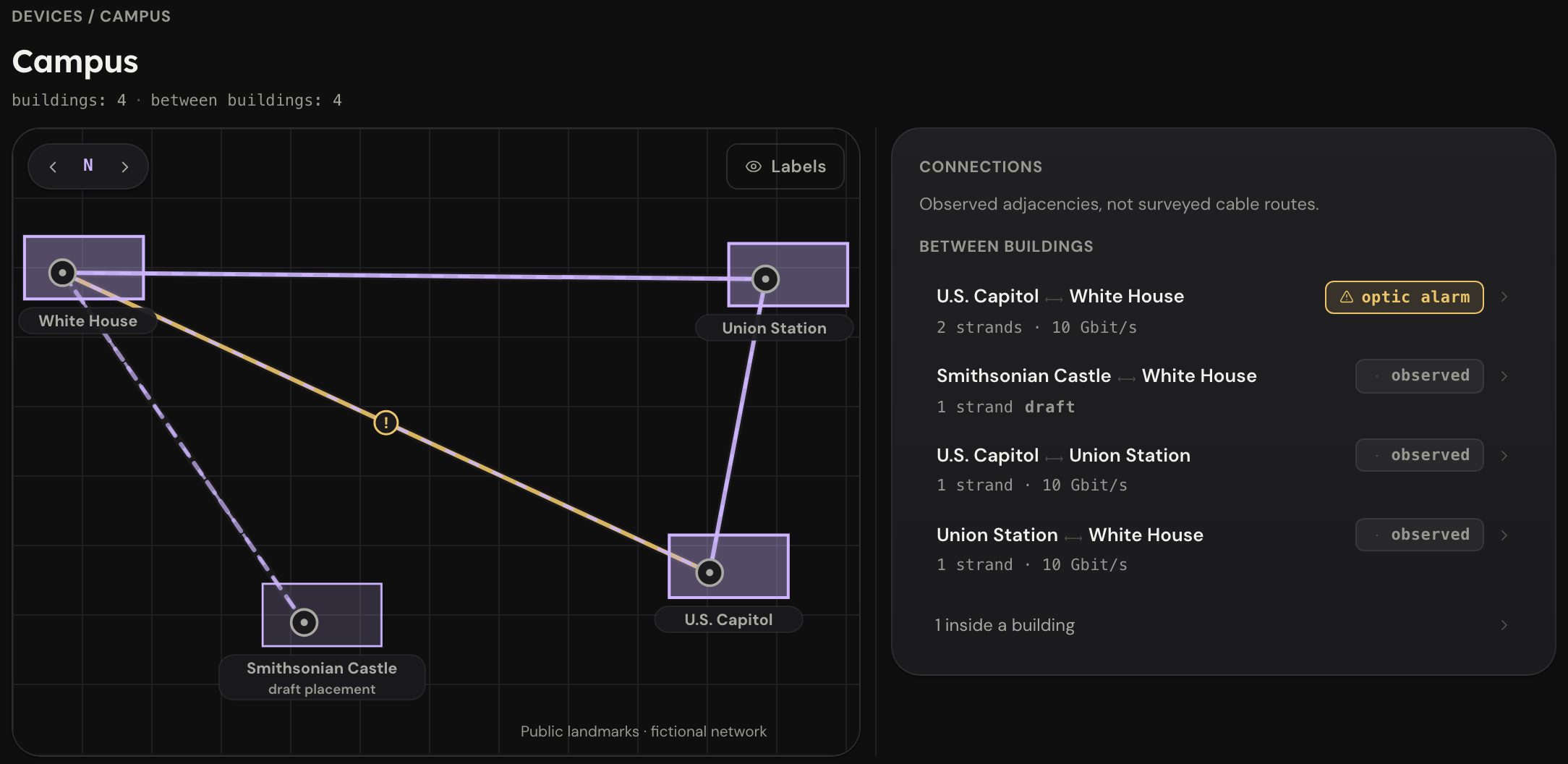
The header counts the buildings and the links between buildings.
- Placement drafts. When Devexana places a building from a switch name, the placement is a draft. Confirm or move each draft in the sites editor before you rely on it.
- What "fiber" means. The word "fiber" in the campus view means inter-building links, plus optics facts where a read returns them. It is not a record of fiber strands.
- Connections list. The list beside the map names each pair of joined buildings, with its strand count and speed. Each switch-to-switch link that the switches report counts as one "strand". This is a count of logical links, not a count of fiber strands. Links inside one building have their own row.
- Link details. A link card shows the speed, the VLANs and the optics facts that the reads returned. If a source read reports an optical alarm, the map marks the link and the Connections list shows optic alarm.
- Freshness. If a neighbour table is older than 24 hours, the view marks the link as stale.
Only an administrator can edit sites. Each edit writes a record to the audit log. To confirm a draft placement, do these steps:
- Open Networking › Devices › Campus.
- Find the building that shows as a draft.
- Compare its position with your own site records.
- If the position matches your site records, confirm the placement.
- If the position is incorrect, move the building to the correct position.
Switch faceplate
The switch faceplate combines the port state that the switch reports, your port map, the devices seen on each port, and VLANs.
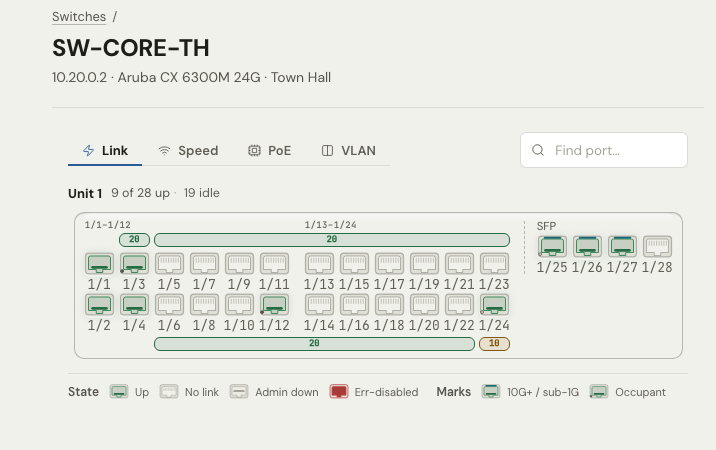
- Reachability. The view states whether the switch is reachable, stale or unreachable now. This is the current state, not a history.
- No read method. If no read method reaches a switch, the faceplate still opens. It marks the switch as not reachable and shows the ports from your port map. See A switch is listed but not read.
- Backup-only switches. A switch known only from a configuration backup shows no port status.
- Port trace. The port trace follows neighbour links from a port to the next switch.
To trace a port, do these steps:
- Select a port.
- Start the port trace to follow neighbour links to the next switch.
What depends on the read method
What a view can show depends on how Devexana reads each switch. Switches over SSH and SNMP explains each read method.
| Read method | What it adds to the views |
|---|---|
| SNMP | Port state, PoE class, VLANs, and LLDP and CDP neighbours |
| SSH, default command set | The running configuration, read once a day |
| SSH, wider command set | Neighbours, PoE power, MAC and ARP tables and optics. This command set is a setting on the appliance and is off by default |
| NAPALM | Error counters and CPU load |
| Your port map (CSV) | Port labels and the person or room on each port. See Import files, port maps and DHCP leases |
Limits
Applies to Devexana release 0.3.182. Page updated 2026-10-20. Questions or corrections: support@devexana.com.