
Start with logs only
Use receive-only listeners and file imports to start without device credentials. Then check that data arrives.
- Off by default
- Syslog, SNMP-trap and NetFlow listeners, until an administrator turns them on
- In production use
- Receive-only syslog and SNMP-trap listeners
- Available
- File, port-map CSV and DHCP lease imports; loading firewall log files with an operator command
- Off by default
- Barracuda CloudGen alert classification and the daily brief
On this page
- Step 1: Turn on the listeners
- Step 2: Point your devices at the appliance
- Step 3: Add a scheduled source for firewall log processing
- Step 4: Import files (optional)
- Step 5: Turn on Barracuda CloudGen alerts and the daily brief (optional)
- Optional: Load firewall log files that you pulled by hand
- Check that it works
- What you will not see at this level
This procedure sets up Level 1: logs and exports only. Devexana receives what your devices send and what you import. It does not contact your devices, and you give it no device credentials.
Level 1 shows log lines, firewall traffic and rollups, flows, your campus from a site file, and cited answers over your files. It does not show current port state, configuration history or neighbour links between switches. Logs, read-only access and evidence: what each level gives you compares the three levels question by question.
Step 1: Turn on the listeners
Each listener is off until an administrator turns it on. By default it listens only on the appliance itself. Bind it to a LAN address to receive from devices.
Set the syslog address and ports
- Open Networking › Firewall › Logs.
- In the view control at the top, select Logs.
- Find the Receive-only listeners panel.
- On the Syslog row, select Details.
- In Bind host, type the LAN address of the appliance.
- In UDP port, type the port. The default is 514.
- If your devices send syslog over TCP, turn on TCP framing.
- If you turned on TCP framing, type the port in TCP port.
If a default port cannot be used on your appliance, choose a port above 1024. Use the same port on your devices in Step 2.
Restrict the senders and turn on the syslog listener
- In Source allowlist, type the address ranges that your devices send from, separated by commas.
- Select Save config.
- Turn on the toggle on the Syslog row.
What you should see: the row shows receiving. Until the first message arrives, the row also shows "nothing received yet".
If you use SNMP traps
- On the SNMP traps row, select Details.
- In Bind host, type the LAN address of the appliance.
- In UDP port, type the port. The default is 162.
- In Source allowlist, type the address ranges that your devices send from.
- Select Save config.
- Turn on the toggle on the SNMP traps row.
If you use NetFlow or IPFIX
- On the NetFlow row, select Details.
- In Bind host, type the LAN address of the appliance.
- In UDP port, type the port. The default is 2055.
- In Source allowlist, type the address ranges that your exporters send from.
- Select Save config.
- Turn on the toggle on the NetFlow row.
Step 2: Point your devices at the appliance
- On each device, set the syslog target to the appliance LAN address and the syslog port from Step 1.
- On each device that sends SNMP traps, set the trap target to the appliance address and the trap port.
- On each NetFlow or IPFIX exporter, set the export destination to the appliance address and the flow port.
- On any firewall between them, allow these ports from your devices to the appliance.
What you should see: lines appear in Networking › Firewall › Logs › Logs after the first message arrives. The listener row shows counters for received and dropped messages.
Step 3: Add a scheduled source for firewall log processing
Firewall log processing runs after a source reads again on its schedule. This processing builds the daily rollups, the per-port observations, the alerts and the daily brief. Add at least one scheduled source, such as a DHCP lease file.
- Ask your installer or administrator to place a DHCP lease file on the appliance.
- Open the Connectors screen.
- Select Add connector.
- Choose DHCP leases (read-only inventory).
- In Lease file path, type the path of the file on the appliance.
- Follow the DHCP lease source instructions in Import files, port maps and DHCP leases.
Supported formats are ISC dhcpd.leases, Kea CSV and Windows DHCP CSV.
What you should see: after the first read, the source shows on the Connectors screen. Make sure that its health state is healthy. For any other state, go to Source health states.
Step 4: Import files (optional)
Imported files add records that answers can cite. Level 1 works without them.
- Open Brain.
- Select Import data.
- Choose a document or spreadsheet.
- Choose its record type.
- Select Run import.
- Repeat steps 2 to 5 for each file.
- If you have a port-map CSV, import it. Import files, port maps and DHCP leases gives the steps.
- If you have a site file, add it to draw buildings and closets on the campus map. Import files, port maps and DHCP leases gives the steps.
What you should see: the import shows the number of records it kept. Imported records appear in search and as citations in answers.
Step 5: Turn on Barracuda CloudGen alerts and the daily brief (optional)
Alerts, the local diagnosis and the daily brief are off by default. They classify Barracuda CloudGen syslog only. They are appliance settings.
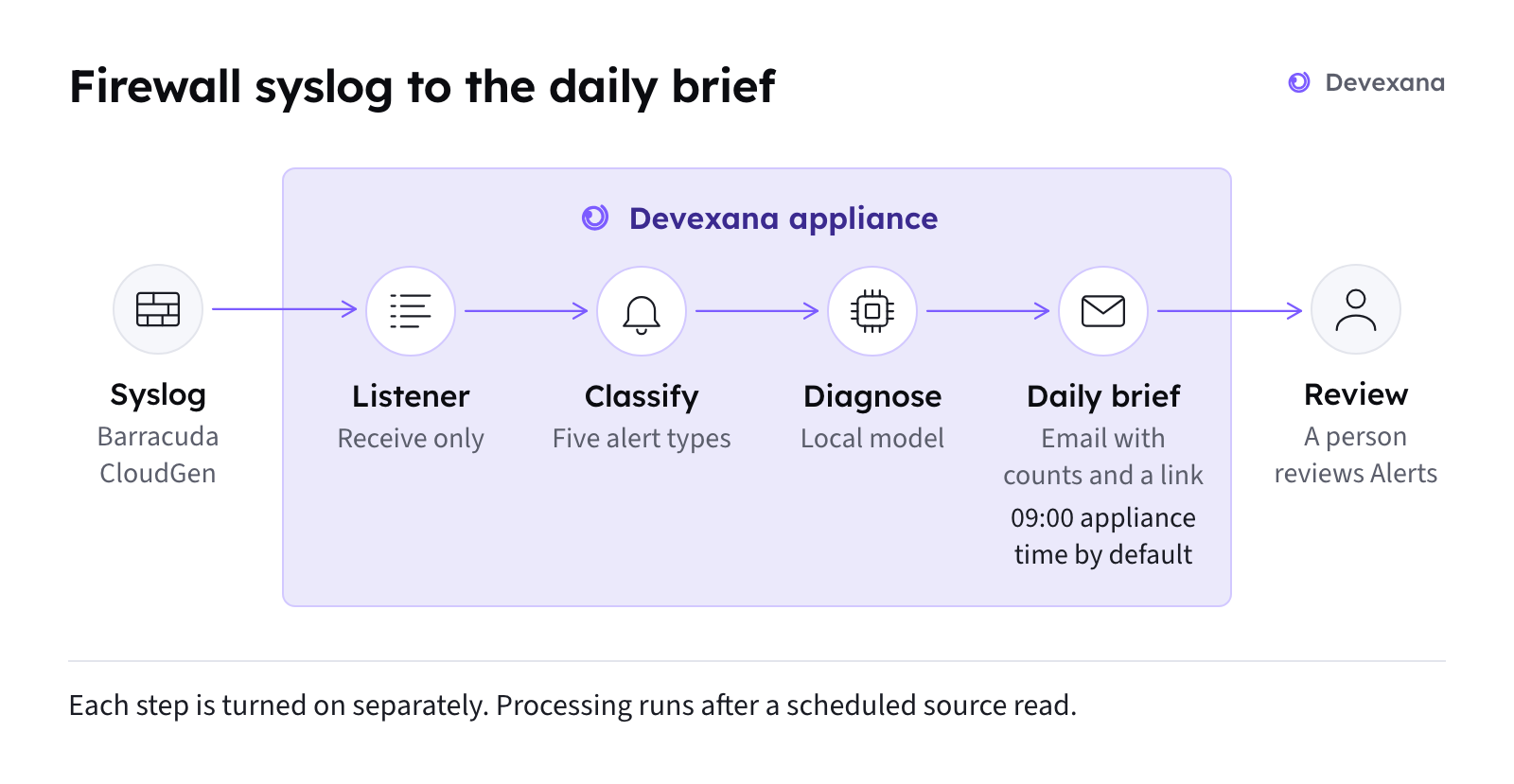
- For Barracuda CloudGen alerts, ask your installer or Devexana support to turn on alert classification.
- If you want local diagnosis, ask your installer or Devexana support to turn it on.
- If you want email, ask an administrator to turn on alert email.
- If you turned on alert email, ask the administrator to select the daily brief mode.
The alert email carries only a severity, a count and a link back to the appliance. Firewall alerts and the daily brief describes the alerts and the brief.
Optional: Load firewall log files that you pulled by hand
An operator command on the appliance loads Barracuda CloudGen log files into the same store as the syslog lines. The command needs shell access to the appliance. Devexana support or your installer runs it.
Check that it works
- Open Networking › Firewall › Logs › Logs.
- Make sure that log lines show.
- For each enabled listener, check that its row shows receiving.
- After a device sends data, check that the listener's received counter increases.
- For a Barracuda CloudGen firewall, open Networking › Firewall › Logs › Traffic.
- Make sure that traffic lines show.
- For Barracuda CloudGen logs, check Brain for daily firewall rollups after the next scheduled source read.
If a listener receives nothing, go to A listener receives nothing.
What you will not see at this level
- Current port state, VLAN or PoE class.
- Configuration history.
- Neighbour links between switches.
- Full-text search over raw log lines.
- Alerts for logs from vendors other than Barracuda CloudGen.
Read-only device access shows switch state from the last read. By default, Devexana reads each device once a day. To add read-only device access, follow Create read-only accounts. Then follow Switches over SSH and SNMP.
Applies to Devexana release 0.3.182. Page updated 2026-10-20. Questions or corrections: support@devexana.com.