
Logs, read-only access and evidence: what each level gives you
Start with logs and files without device credentials. When you need more context, add read-only device access or other sources.
- In production use
- Receive-only syslog and SNMP-trap listeners; Barracuda CloudGen syslog processing, SSH read and alerts; Aruba/HP AOS-S switch reads over SSH and SNMP; Freshservice
- Available
- Other switch families, directory sources and PRTG sources. File, port-map and DHCP lease imports
- Off by default
- Each listener, firewall alerts and the daily brief, and the extended switch read set, until an administrator turns them on
On this page
Devexana works at three levels of access. You choose the level. Each level adds sources that answers and findings can cite.
- Level 1: logs and exports only. You give no device credentials. Devices and firewalls send logs to receive-only listeners on the appliance, and you import files.
- Level 2: read-only device and API access. Devexana reads switches, routers and firewalls over SSH and SNMP with read-only accounts. You can see the read schedule.
- Level 3: added context. Devexana adds your helpdesk, directory, port map, site file and monitoring. It also adds the extended switch read set, and firewall logs combined with the firewall's interface read.
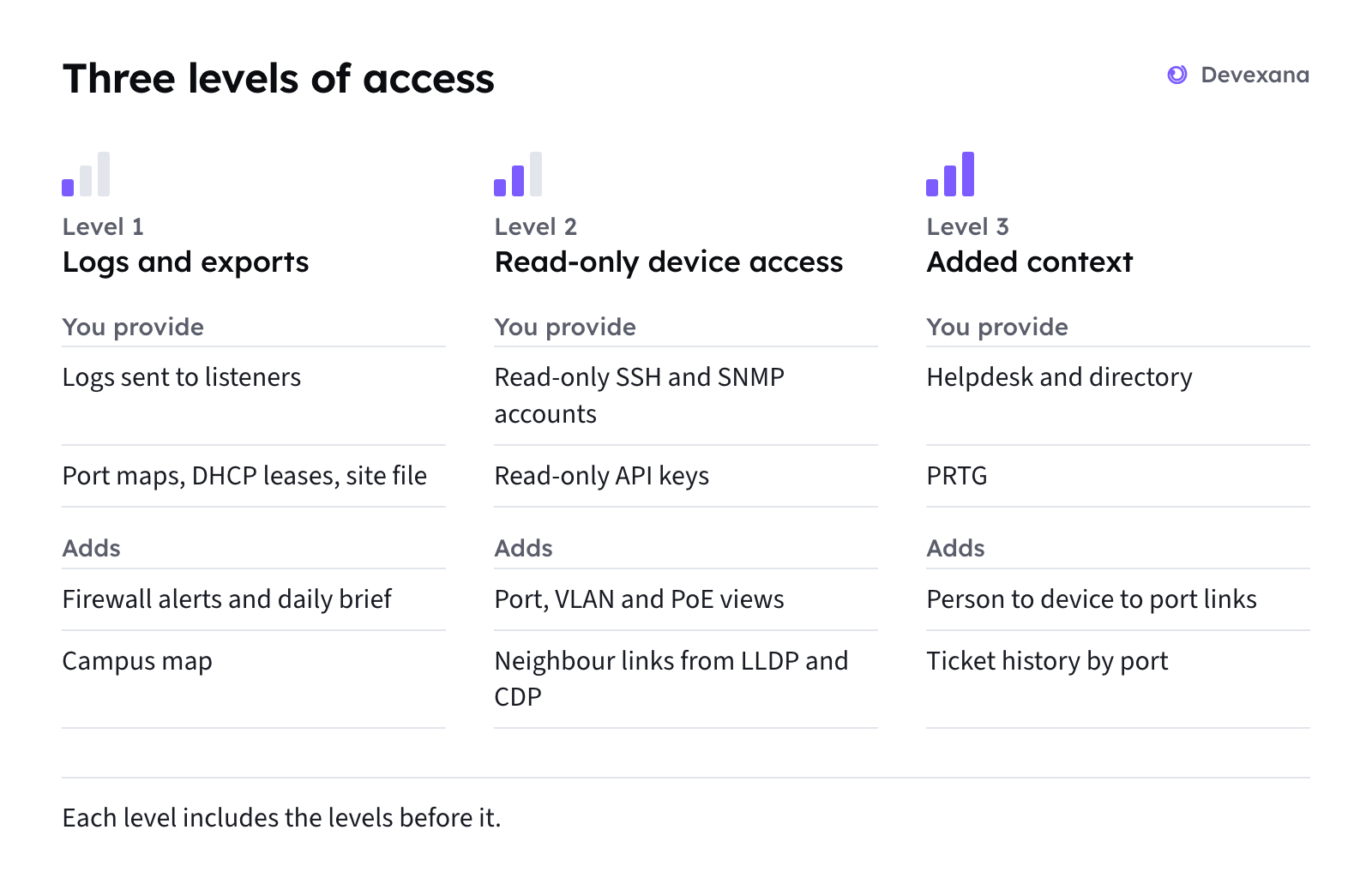
The levels add up. Level 3 includes Level 2. Three Level 3 sources need no credential: the port map, the site file and DHCP lease files. You can also use them at Level 1.
You can start at Level 1 and give Devexana no device credentials. The sources on this page only read. In this release, changes to network-device configuration are disabled in code.
Level 1: logs and exports only
At Level 1, Devexana receives what your devices send and what you import. It does not contact your devices.
What Level 1 receives
- Syslog in RFC 3164 or RFC 5424 format, over UDP or optional newline-framed TCP.
- SNMP traps, version 1 and 2c.
- NetFlow version 5 and 9, and IPFIX.
- Files: documents, spreadsheets, port-map CSV files, DHCP lease files, and a site file for the campus map.
- Optional: firewall log files that your team pulls by hand. Devexana support or your installer loads them with an operator command on the appliance.
Each listener is off until an administrator turns it on. Listeners receive only. Their sockets cannot send, and Devexana blocks and logs an attempt to send.
What Level 1 shows
| Screen | What you see |
|---|---|
| Networking › Firewall › Logs › Logs | Raw syslog and trap lines for 30 days, filtered by host and source address |
| Networking › Firewall › Logs › Traffic (Barracuda CloudGen) | Firewall traffic lines with action, user and rule filters |
| Firewall faceplate (Barracuda CloudGen) | Per-port observations drawn from the logs alone |
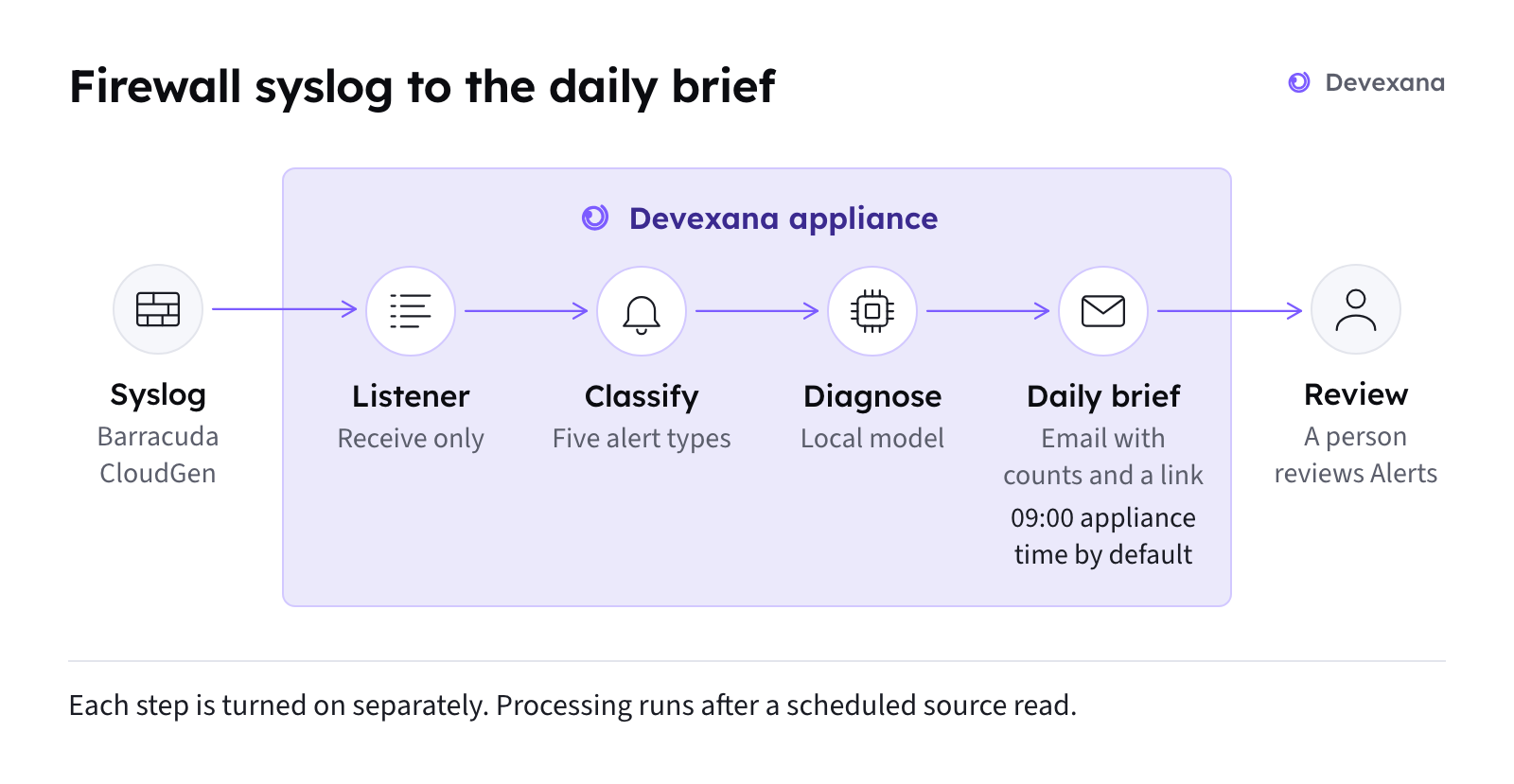
| Firewall alerts and the daily brief (Barracuda CloudGen) | Alerts and one summary a day, when an administrator turns them on. They are off by default |
| Networking › Firewall › Logs › Flows | Top talkers and time series from NetFlow and IPFIX |
| Networking › Devices › Campus | Buildings and closets from your site file |
| Chat and Brain | Search and cited answers over imported files and daily firewall rollups |
What Level 1 does not show
- Current port state, VLANs and PoE.
- Neighbours, and MAC and ARP tables.
- Configuration history and configuration posture checks.
- Neighbour links between switches.
- Alerts for logs from vendors other than Barracuda CloudGen. Devexana stores those lines and you can filter them, but it does not classify them into alerts.
What the assistant can conclude at Level 1
The assistant can cite what a firewall logged, what your files say and what a daily rollup counted. It cannot state the current state of a port or a configuration. When nothing relevant is stored, the assistant says so.
Set up Level 1
- Start with logs only: the step-by-step procedure.
- Syslog, SNMP traps and NetFlow: listener settings, ports and retention.
- Import files, port maps and DHCP leases: imports, port maps, DHCP leases and the site file.
- Firewall alerts and the daily brief: Barracuda CloudGen syslog alerts and the daily brief.
Level 2: read-only device and API access
At Level 2, Devexana reads your network devices on a schedule, with accounts that you create and restrict.
What Level 2 receives
- Over SSH, per switch: the running configuration once a day by default, plus an identity record.
- Over SNMP, per switch: interfaces and their state, VLANs, LLDP and CDP neighbours, the forwarding (MAC) table and PoE class.
- Through NAPALM getters, for families that support them: interface counters and environment data.
- Barracuda CloudGen over SSH: interfaces, version, high-availability state, routes and licences. This read includes no rules and no logs.
What Level 2 shows
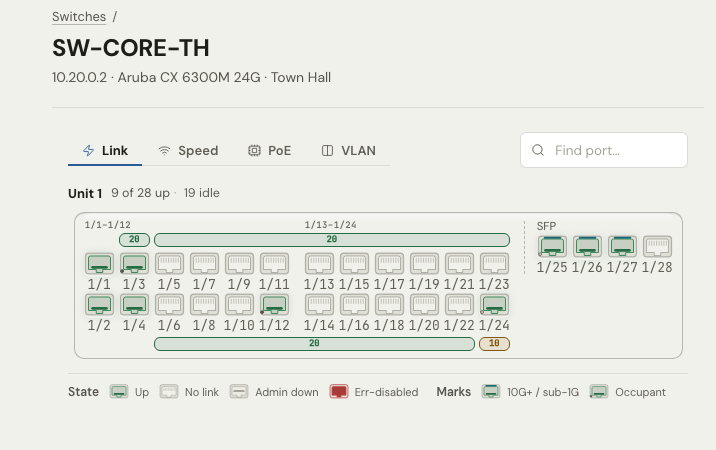
- The switch faceplate: port state, VLAN, PoE class and the device on each port.
- Port trace, and neighbour links from LLDP and CDP.
- Inferred access points and phones, which wait for a person to approve them.
- Campus links between buildings.
- Configuration history, with a diff for each change.
- Posture checks on configurations, for example Telnet on or a default SNMP community.
- Duplicate MAC and address-conflict findings.
- End-of-life hints, and hints that a device matches a known-exploited vulnerability.
- The read-only command console on each switch page.
How often Level 2 reads
By default, Devexana reads each network device once a day. This limits the sign-in entries in each switch's authentication log. A person can request a refresh from the switch page. Every view and every citation shows when its data was read.
What Level 2 does not show
- Device state changes that scheduled reads do not capture. Received logs can contain events between reads.
- Error counters on families that Devexana reads only over SSH and SNMP.
- Firewall rules from the Barracuda CloudGen SSH read.
- Device up and down history.
What the assistant can conclude at Level 2
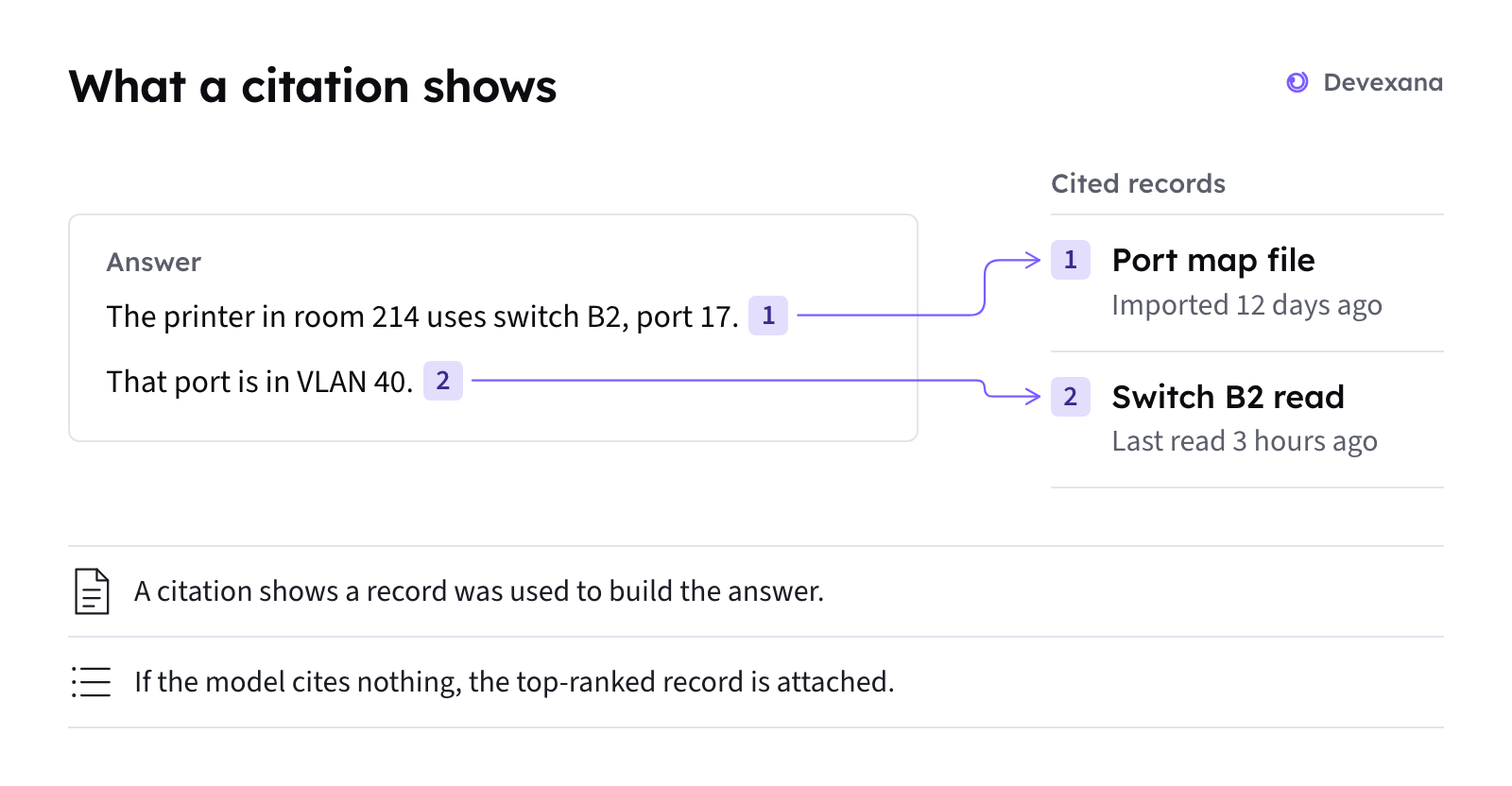
The assistant can state what a device reported at the last read, and when that read happened. Scheduled reads do not capture every state change. Received logs can contain events between reads. On a switch page, Devexana checks addresses, interfaces and people named in a drafted answer. Devexana rejects the draft if the evidence lacks any named item.
How Level 2 stays read-only
SSH commands must pass a read-only allowlist. SNMP uses GET and GETNEXT requests only. NAPALM uses getters only. Each read function stays off until an administrator approves it. In this release, changes to network-device configuration are disabled in code. Read-only sources describes each check.
Set up Level 2
- Create read-only accounts: create restricted read-only accounts.
- Switches over SSH and SNMP: switches over SSH and SNMP.
- API connectors and ticketing: firewalls, controllers and other applications through their APIs, and the Barracuda CloudGen SSH read.
Level 3: added context
Level 3 adds records from other sources. Check whether the records contain independent evidence before you use them to assess a finding.
What Level 3 adds
| Source | Credential | Status |
|---|---|---|
| Helpdesk (Freshservice) | Read-only API key | In production use |
| Directory (LDAP or Active Directory over LDAPS, or Microsoft Entra ID) | Read-only bind, or application credentials with read permissions | Available |
| Port map and site file | None | Available |
| DHCP lease files | None | Available |
| PRTG monitoring | Read-only API token | Available |
| Extended switch read set | The Level 2 SSH account | Off by default. Set at install |
| Firewall syslog combined with the firewall's SSH interface read (Barracuda CloudGen) | The Level 2 firewall SSH account | In production use |
What changes at Level 3
- Person to device to port. Devexana joins directory, DHCP and helpdesk asset records to MAC and ARP tables. Each link has a confidence label.
- Ticket history. Answers cite helpdesk tickets next to a switch or a port, with their dates.
- More switch detail. Optics, PoE watts and CLI neighbours come from switches read over SSH with the extended read set.
- Monitoring state. PRTG sensor state appears per switch where a PRTG source exists.
- Confirmed placements. Campus placements in your site file replace the drafts that Devexana makes from host names.
Set up Level 3
- API connectors and ticketing: Freshservice, LDAP, Active Directory, Entra ID and PRTG.
- Import files, port maps and DHCP leases: port map, site file and DHCP leases.
- Switches over SSH and SNMP: the extended switch read set.
- Syslog, SNMP traps and NetFlow: firewall syslog.
Questions a network engineer asks, by level
The four tables below answer 20 questions at each level. Yes means Devexana shows or answers this from data it holds at that level. Partial means it shows part of the answer, and the cell says which part. No means not at this level. Level 3 includes Level 2.
Ports and device identity
| Question | Level 1: logs and exports | Level 2: read-only device access | Level 3: added context |
|---|---|---|---|
| Which switch port is this user or device on? | Partial. Only what your port-map CSV states. DHCP lease files link an address to a MAC. No MAC table is read. | Partial. MAC and ARP tables link a MAC or an address to a port. A person's name needs a directory or helpdesk source. | Yes. Directory, DHCP and helpdesk records are joined to MAC, ARP and port, each with a confidence label. The People screen must be on in the appliance profile. |
| Is this port up, and which VLAN and PoE class is it on? | No. Logs and exports carry no current port state. | Yes, as of the last read. SNMP gives state, speed, VLAN and PoE class. | Yes, plus PoE watts and optics on AOS-S with the extended read set. |
| What are the optical light levels on this link? | No. | No, not with the default read. | Yes on AOS-S with the extended read set. Other families: available. |
| Which device has this IP or MAC address? | Partial. DHCP lease files link address, MAC and host name. | Yes. ARP and MAC tables, with the time of each read. | Yes, plus names from directory and helpdesk records. |
| What is connected to this switch? | Partial. Only what you declare in the site file or in an optional file of links that you declare. | Yes. LLDP and CDP neighbours show the links. The default SSH read collects no neighbour data. | Yes. The extended read set adds CLI neighbours for switches read over SSH. |
| Where is this switch physically? | Partial. Buildings and closets from your site file. No links. | Partial. Devexana places switches as drafts from host names until a person confirms them. Links are logical LLDP neighbour links. | Yes for confirmed placements in your site file. No level has fiber or cable records. |
| Which switches are on the network? | Partial. Imported inventory records only. | Yes. Identity from each read, and an LLDP and CDP crawl from the switches you name. | Yes, plus PRTG device lists. |
Firewall logs and rules
| Question | Level 1: logs and exports | Level 2: read-only device access | Level 3: added context |
|---|---|---|---|
| What did the firewall block? | Yes for Barracuda CloudGen syslog. The Traffic view filters by action, user and rule. Daily "blocked" rollups are citable. Other vendors: raw lines only. | Yes, from the same logs. The faceplate names firewall ports from the SSH interface read. | Yes, plus blocks matched to a person's addresses and user names when directory or DHCP records exist. |
| Did someone change the firewall configuration? | Partial (Barracuda CloudGen). Devexana rolls up administrator and commit log lines. An administrator-change alert exists and is off by default. No rule diff. | Partial. The SSH read covers interfaces, high availability, routes and licences. It does not cover rules. | Partial. Rule reads need a rule-reading source, such as the Barracuda CloudGen REST source. Devexana sets up that connector for your instance during onboarding. |
| Is the firewall seeing an attack (brute force, port scan, deny flood)? | Yes for Barracuda CloudGen when alert classification is on. It is off by default. The optional email has only a severity, a count and a link. Other vendors: not classified. | Yes, the same. Device reads do not change this. | Yes, the same. The diagnosis can name firewall ports from the interface read. |
| Which firewall rule allows traffic from A to B? | No. You cannot upload rule exports as structured data. | Partial. Only from a rule-reading source. Sophos XML, Barracuda CloudGen REST and Linux nftables text: available. The Barracuda CloudGen SSH read has no rules. | Partial, the same. |
| Can I search all logs for a string? | No. Raw lines have host and source-address filters, not full-text search. | No. | No. The assistant can search the Barracuda CloudGen daily rollups, not the raw lines. |
Configuration and security
| Question | Level 1: logs and exports | Level 2: read-only device access | Level 3: added context |
|---|---|---|---|
| What changed in this switch's configuration, and when? | No. An uploaded configuration becomes a searchable document, not a configuration version. Exception: the backup-archive source, off by default, needs a storage credential. | Yes, by day. Devexana reads the running configuration once a day. It keeps a new version with a diff when the configuration changes. | Yes, by day, with related tickets cited beside it. The extended read set also reads the startup configuration. |
| Does any switch have Telnet on or a default SNMP community? | No. Posture checks read collected configurations, not uploaded documents. | Yes, on request or in a routine. Each finding starts as proposed, and a person confirms it. | Yes, the same. |
| Is this device end of life, or does it match a known-exploited vulnerability? | Partial. Devexana checks model or version text in imported asset records against a bundled end-of-life list and the CISA KEV catalogue. The Security screen must be on in the appliance profile. | Yes for end of life, from device identity. KEV matches are hints. Devexana does not evaluate version ranges. | Yes, the same, plus helpdesk asset records. |
| Are two devices claiming the same address or MAC? | Partial. Address use from DHCP lease files. | Yes. MAC and ARP tables feed duplicate-MAC and address-conflict findings. The Security screen must be on in the appliance profile. | Yes, the same. |
Monitoring and history
| Question | Level 1: logs and exports | Level 2: read-only device access | Level 3: added context |
|---|---|---|---|
| Why is this uplink erroring or dropping? | Partial. The raw syslog and trap lines the device sent, filtered by host. No counters. | Partial. Port state and neighbours. Error counters only from NAPALM getters. No SNMP counter reads. | Partial. Adds PRTG sensor data where a PRTG source exists, and optics from the extended read set. |
| Which hosts send the most traffic? | Yes if exporters send NetFlow v5, v9 or IPFIX to the flow listener (off by default). Raw flows kept 48 hours, summaries 90 days. No sFlow. | Yes, the same. | Yes, the same. |
| Is this device down right now? | No. Devexana does not check device up or down status on a schedule. A silent Barracuda CloudGen log stream can raise an alert when that alert is on. | Partial. Each source shows its last successful read and a health state. This is not a reachability monitor. | Partial. Adds PRTG sensor status per switch where a PRTG source exists. |
| Has this happened before? Which tickets mention this switch or port? | Partial. An imported ticket export is searchable and citable. | Partial, the same as Level 1. | Yes. Devexana reads helpdesk tickets again every 15 minutes and cites them with their dates. |
What each level needs from you
Network paths in this table go towards the appliance unless the cell says "from the appliance".
| Level | Credentials | Network paths | Files and settings |
|---|---|---|---|
| 1 | None for devices. | Syslog: UDP 514 by default, or a port you choose, with optional TCP. SNMP traps: UDP 162 by default. NetFlow and IPFIX: UDP 2055 by default. Allow these from your devices to the appliance. | An administrator turns on each listener, binds it to a LAN address (the default is the appliance itself) and lists the allowed sender ranges. Optional: port-map CSV, DHCP lease file, site file and image, documents and spreadsheets. At least one scheduled source, for example the DHCP lease file, so that firewall log processing runs. |
| 2 | Per switch: an SSH account restricted to read privileges, an SNMPv2c read community, or an SNMPv3 read user (HMAC-SHA authentication, AES-128 privacy). Per Barracuda CloudGen firewall: an SSH account. Per API-managed system: a read-only API key. | From the appliance: SSH (TCP 22) and SNMP (UDP 161) to each device, and HTTPS to API-managed systems. | An administrator approves each read function. Devexana trusts each SSH host key on first use and then pins it. Default cadence: once a day per device. |
| 3 | Freshservice: a read-only API key. Directory: a read-only LDAPS bind, or Entra ID application credentials. PRTG: a read-only API token. | From the appliance: HTTPS to the helpdesk, Entra ID or PRTG, and LDAPS (TCP 636) to directory servers. | Port-map CSV and site file (no credential). Extended switch read set: the appliance setting DEVEXANA_DEVICE_READ_SET=1, set at install. It has no field on the Settings screen. Firewall: send syslog and add the SSH read. |
If the default listener port is unavailable, choose a port above 1024. Configure your devices to send to that port. Syslog, SNMP traps and NetFlow has the details.
What no level provides in this release
These gaps apply at every level. Plan to keep your current tools for them.
Choose a starting level
- If device credentials need a security review first, start at Level 1. Start with logs only gives the steps.
- Move to Level 2 one switch family at a time, as your team approves each read-only account.
- Add Level 3 sources one at a time.
- After you add each source, check its health state on the Connectors screen. Source health states explains each state.
Limits
What Devexana does not do (limitations) lists everything that Devexana does not do.
Applies to Devexana release 0.3.182. Page updated 2026-10-20. Questions or corrections: support@devexana.com.