
Source health states
The Connectors page shows a health state for each source. Use the source health state to select troubleshooting checks and actions.
- In production use
- Devexana determines source health from read history
- Available
- Pause on a breaking change in a source's data shape (on by default)
On this page
Devexana determines each source's health from its recent read history. Devexana must observe a read before it shows the source as healthy.
The five states
| State | What it means | First action |
|---|---|---|
| never-read | Devexana has not recorded a read from this source. | Ask an administrator to approve the required read functions. |
| healthy | Reads succeed and the data is current. | No action. |
| degraded | Reads fail at intervals, the last good read is older than 24 hours, or reads repeatedly return no records. | Open the run history of the source. |
| broken | Five consecutive reads failed for reasons other than authentication or permission errors. | Select Test connection. |
| expired-credential | Every failure in the current series is an authentication or permission error. | Enter the credential again. |
The 24-hour and five-read limits are the defaults.
Symptoms
The source shows never-read
What happened
Devexana has no record of a read from this source.
Why
The source is new, its read functions are not approved, or its schedule has not run yet. By default, Devexana reads each network device once a day. The first scheduled read can start up to 24 hours later.
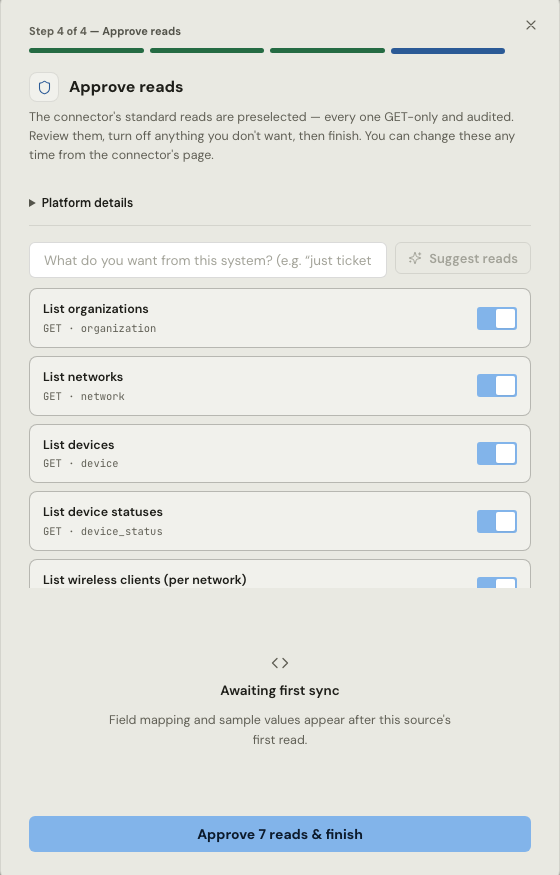
An administrator approves read functions.
What to do
- Open the source on the Connectors page.
- Make sure that each read function you need is approved.
- Select Sync now.
- Wait for the run to finish.
- Look at the state again.
If this does not fix it
Send an email to support@devexana.com. Include the source type, the time of the sync and the run history of the source.
The source shows degraded
What happened
The source is still connected, but its data is not current or not complete.
Why
One of these conditions is true:
- reads fail at intervals, but fewer than five in a row;
- the last good read is older than 24 hours;
- reads repeatedly return no records;
- Devexana paused reads after repeated failures, to protect the source system.
What to do
- Open the run history of the source on the Connectors page.
- Check the most recent run.
- If the run failed, read its error.
- Check that the source system is running.
- Check whether the source system contains new data.
- Select Sync now.
- After the next read, check the source state and run history again.
If this does not fix it
Send an email to support@devexana.com. Include the source type and run history. If a run failed, include its error text.
The source shows broken
What happened
Five consecutive reads failed. The failures are not authentication or permission errors.
Why
The source system is unreachable or down, or the address is wrong. For a network device, the SSH host key can also have changed.
What to do
- Open the source on the Connectors page.
- Select Test connection.
- If the test fails, check the source address.
- Check the source port.
- Check the network path to the source system.
- If the error says that the host key changed, follow the steps in A switch is listed but not read.
- If the test succeeds, select Sync now.
If this does not fix it
Send an email to support@devexana.com. Include the result of Test connection and the error text of the last failed run.
The source shows expired-credential
What happened
Every failure in the current series is an authentication or permission error.
Why
The password or key was changed or revoked, or the account lost its read rights.
What to do
- Make sure that the read-only account still exists on the source system. See Create read-only accounts.
- Open the source on the Connectors page.
- Enter the credential again.
- Select Test connection.
- Select Sync now.
If this does not fix it
Send an email to support@devexana.com. Include the source type and the error text of the last failed run. Do not send the credential.
The source is paused after a change in its data
What happened
Devexana stopped reading the source.
Why
The source changed the shape of its data in a breaking way. Devexana pauses the source until a person acknowledges the change.
An administrator must acknowledge the change.
What to do
- Open the source on the Connectors page.
- Read the description of the change.
- If you expect the change, acknowledge it.
- Select Sync now.
If this does not fix it
Send an email to support@devexana.com. Include the source type, the software version of the source system and the description of the change.
About Test connection
For a network device, Test connection succeeds only after Devexana reads data from the device. A successful network connection alone is not enough.
Applies to Devexana release 0.3.182. Page updated 2026-10-20. Questions or corrections: support@devexana.com.